

Adding a template
Add a HubSpot marketing email in Settings so it can be reviewed and chosen in the Send transactional email action.
Overview
Section titled “Overview”Before a workflow can send an email, a Super Admin adds it in Settings → Templates. Adding a template checks its modules and starts the transactional content review. Once the template is compatible and approved, it appears in the Email template dropdown of the Send transactional email action.
The dropdown lists only templates added here, so your workflow builders choose from emails that are known to send.
Before you begin
Section titled “Before you begin”- The Super Admin role in HubSpot. Everyone else can see Settings → Templates but can’t add, remove, or refresh templates.
- A marketing email in HubSpot to use as the template: an Automated email (draft or published) or a Regular email that’s still a draft. See Creating a transactional email template.
-
Open Settings → Templates. In HubSpot, go to Marketplace apps → Transactional Email, open Settings, and select the Templates tab. From App Home, click Open settings at the top of the page.
-
Click Add a template.
-
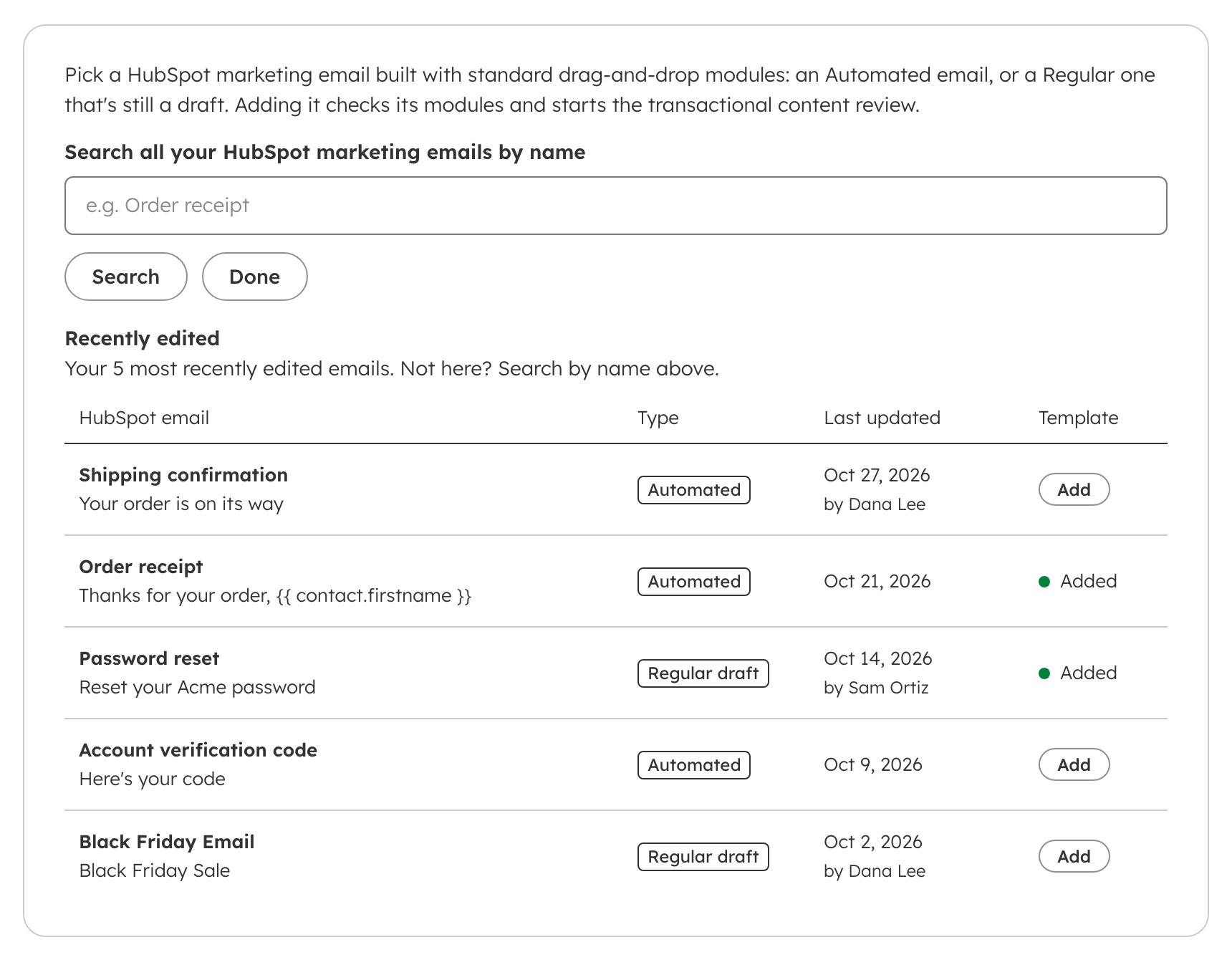
Find the email. The list starts with your 5 most recently edited emails that can be added. Not there? Type part of the email’s name in the search box and click Search; Show recent goes back to the recent list. Each email is tagged Automated or Regular draft — an Automated email’s Personalize button offers tokens from the workflow’s record — and shows when it was last updated and by whom.
-
Click Add next to the email. Emails already in your list show Added instead. Click Done when you’ve finished.
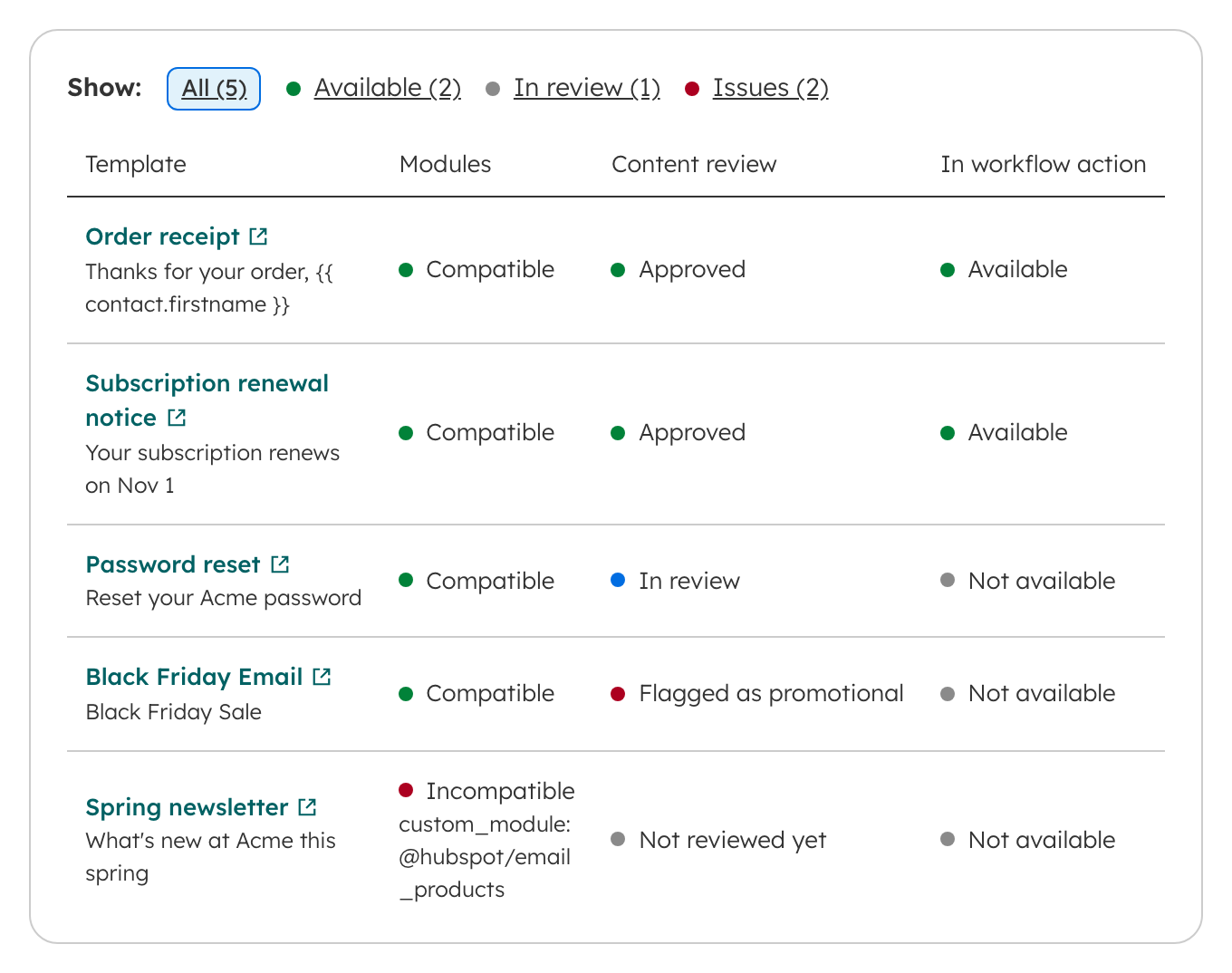
The template appears in the Templates list with its Modules check, Content review status, and whether it’s Available in the workflow action. Click a template’s name to open the email in HubSpot’s editor in a new tab. The Available tab lists the templates the workflow dropdown offers; In review lists the ones waiting on the content review; Issues lists the ones that need a fix (incompatible, flagged as promotional, or a review error).
What happens next
Section titled “What happens next”-
The modules are checked right away. Modules shows Compatible, or Incompatible with the reasons. An incompatible template never appears in the workflow dropdown. See Supported email modules.
-
The content review runs in the background and is usually done within a few minutes. Content review shows the result:
Review status In the workflow dropdown? Not reviewed yet or In review Not yet. It appears once the review approves it. Approved Yes, if the modules are compatible. Flagged as promotional No. See Fixing a template that failed review. Review error No. A Super Admin’s Refresh tries the review again. -
Edits are reviewed again. When you edit the email in HubSpot, Transactional Email picks up the new version within about 15 minutes, or right away after Refresh. Until the new version is approved, the template drops out of the dropdown. Workflows that already use it keep their selection; their sends wait up to 10 minutes for the review, then fail with
review_pendingorreview_failed. See Refreshing a template after editing. -
Added templates stay in the list until a Super Admin removes them, whether or not they’re sending.
Removing a template
Section titled “Removing a template”- In Settings → Templates, click Remove next to the template.
- Confirm.
The template leaves the list and the workflow dropdown, and Transactional Email stops checking it for edits. Workflow actions that already use it keep sending it — each send still checks its modules and review, and restarts the edit checks until no workflow has sent it for 45 days — but it doesn’t come back to the list on its own. To list it again, add it again.
Troubleshooting
Section titled “Troubleshooting”My email isn’t in the Add list. The list shows Automated emails, draft or published, and Regular emails that are still drafts. A Regular email that’s been published, scheduled, or sent doesn’t appear, and neither do A/B test, blog, RSS, feedback survey, or ticket emails. Search matches the email’s name, so check its spelling in HubSpot.
My template isn’t in the workflow dropdown. Check its row in Settings → Templates:
- Incompatible — replace the unsupported modules. See Supported email modules.
- Not reviewed yet or In review — wait a few minutes, click Refresh list, then reopen the action. The In workflow action column shows Available once the dropdown offers it.
- Flagged as promotional — edit the email. See Fixing a template that failed review.
- Review error — click Refresh to try again. See How the transactional content review works.
- Not in the list at all — add it, following the steps above.
A template I didn’t add is in the list. Templates your workflows were already using when this list was introduced were added for you. Remove any you don’t need.
Related articles
Section titled “Related articles”Ask the help center
Answers come from these guides, with links to the articles used.
Ask anything about Transactional Email or VLOOKUP for Workflow.