

Using the Perform a VLOOKUP action
Add the VLOOKUP action to a workflow, choose what to look up, and use the result in later steps.
Overview
Section titled “Overview”Perform a VLOOKUP is the heart of VLOOKUP for Workflow. It takes a property value from the enrolled record, finds the matching row in one of your sources, and returns a value from that row for the rest of the workflow to use.
Before you begin
Section titled “Before you begin”- VLOOKUP is installed and you have at least one source. See Creating a CSV source in VLOOKUP or Creating a Google Sheets source in VLOOKUP.
-
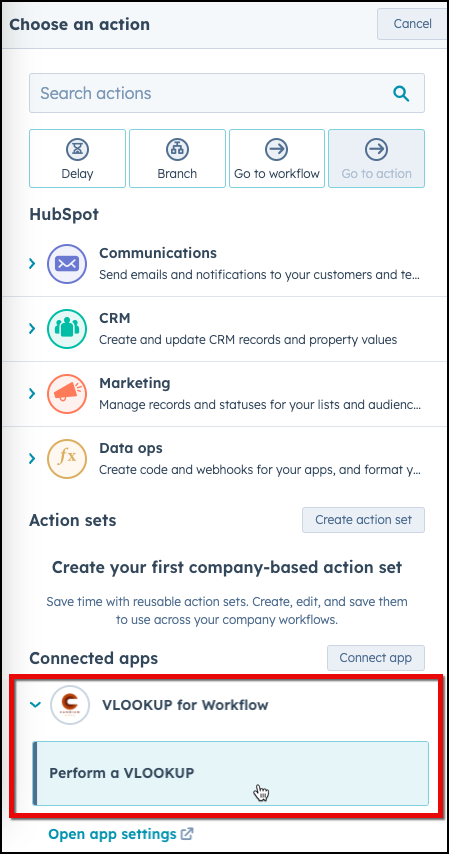
Add an action to your workflow and choose Perform a VLOOKUP.
-
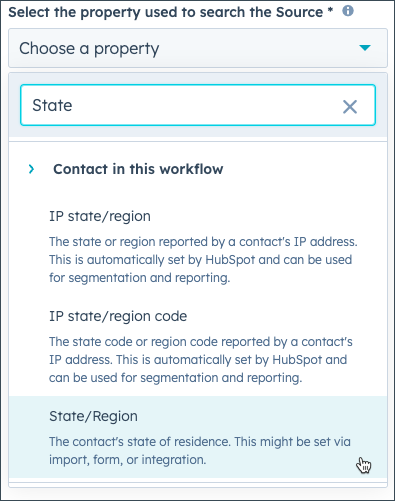
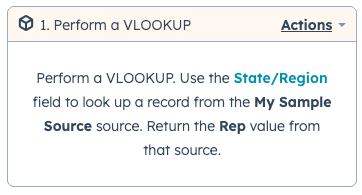
Choose the property to look up. Its value on the enrolled record is what VLOOKUP searches for in the first column of your source.
-
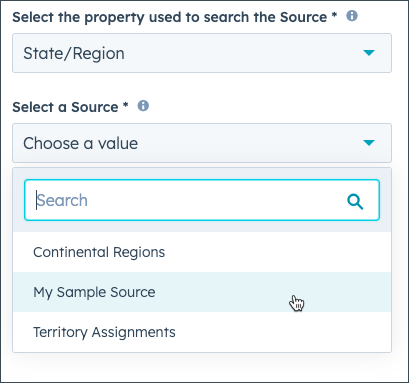
Choose the source to look in.
-
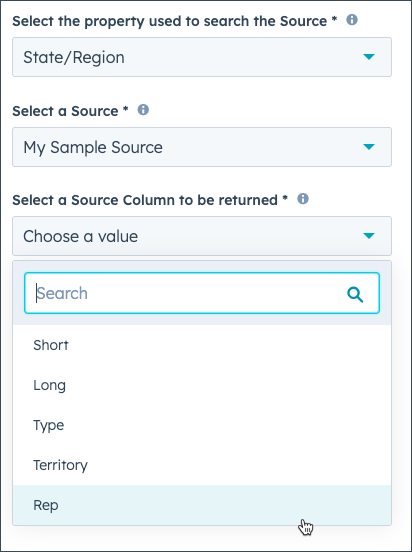
Choose the column to return when a matching row is found.
-
Save the action.
The action is configured and shows its settings in the workflow.
What happens next
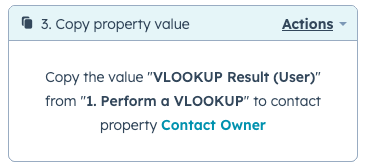
Section titled “What happens next”Use the action’s outputs in the steps after it — most often a Value equals branch on Was a Result Found?, then a Copy property value action that writes the result to a property. This example writes the returned rep to the contact’s owner:
Each output is explained in VLOOKUP workflow output values.
Related articles
Section titled “Related articles”Ask the help center
Answers come from these guides, with links to the articles used.
Ask anything about Transactional Email or VLOOKUP for Workflow.