

Creating a CSV source in VLOOKUP
Paste a table from Excel, Google Sheets, or a CSV file into VLOOKUP and look it up from your workflows.
Overview
Section titled “Overview”A CSV source is a table you paste into VLOOKUP, which then hosts it for you. Use one when your data changes rarely; when it changes often, a Google Sheets source saves you re-pasting.
VLOOKUP always matches against the first column of a source. Put the values that come from your HubSpot records in column 1. When a row matches, the workflow can return any column from that row.
Before you begin
Section titled “Before you begin”Get your data ready with the column headers in row 1 and the lookup values in column 1.
-
Open the VLOOKUP settings. See Finding the VLOOKUP settings page.
-
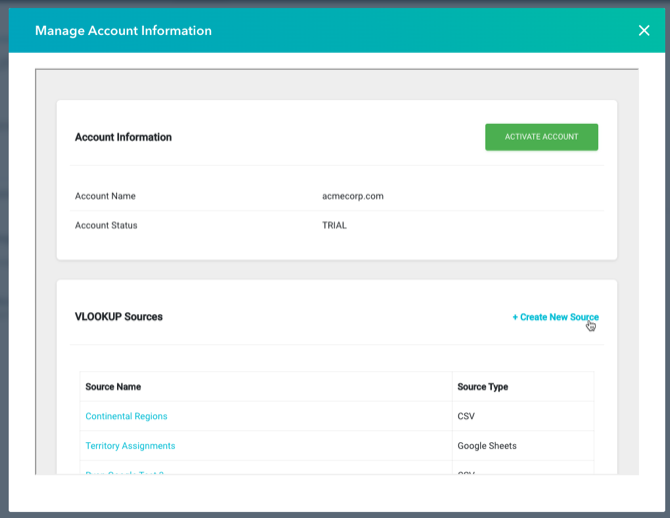
Click Create New Source at the top of the list of sources.
-
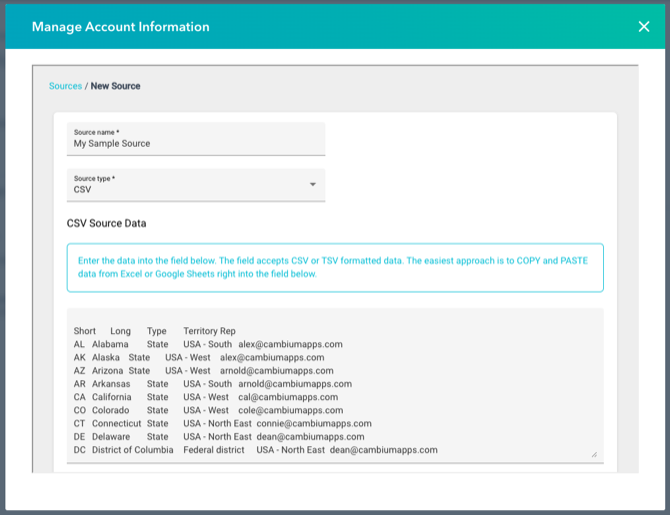
Name the source in Source name, and choose CSV as the Source type.
-
Paste your data into the large text box. It accepts either:
- Data copied from a spreadsheet such as Excel or Google Sheets (recommended). This pastes in as tab-separated data, which VLOOKUP accepts.
- CSV-formatted text, for example copied from a CSV file opened in a text editor.
-
Click Save.
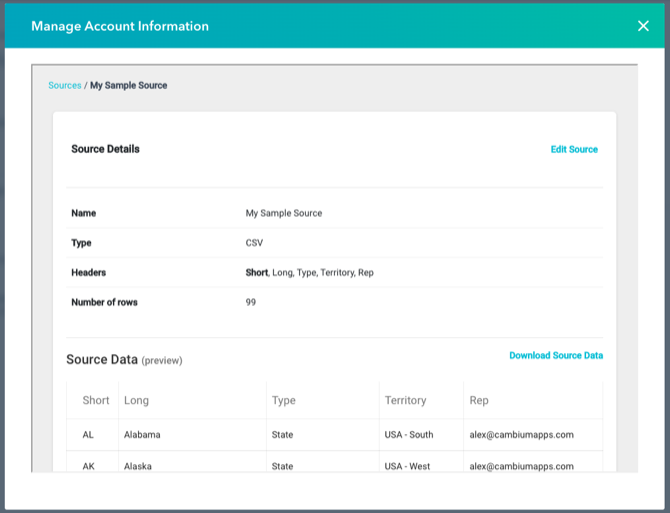
Your source is ready to use in workflows. Click it in the sources list to preview its data.
Related articles
Section titled “Related articles”Ask the help center
Answers come from these guides, with links to the articles used.
Ask anything about Transactional Email or VLOOKUP for Workflow.