

Installing VLOOKUP
Install VLOOKUP for Workflow from the HubSpot Marketplace or straight from the workflow editor.
Overview
Section titled “Overview”You can install VLOOKUP for Workflow from its HubSpot Marketplace listing, or from inside a workflow when you add an action. Either way, your account starts a 14-day free trial, and the user who installed the app gets an email from us with more information.
Install from the HubSpot Marketplace
Section titled “Install from the HubSpot Marketplace”-
Open the VLOOKUP Marketplace listing and click Install App.
-
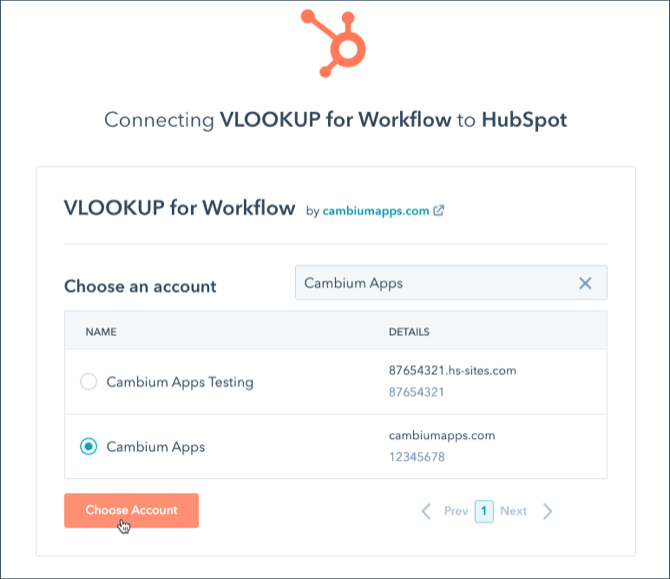
Choose your HubSpot account.
-
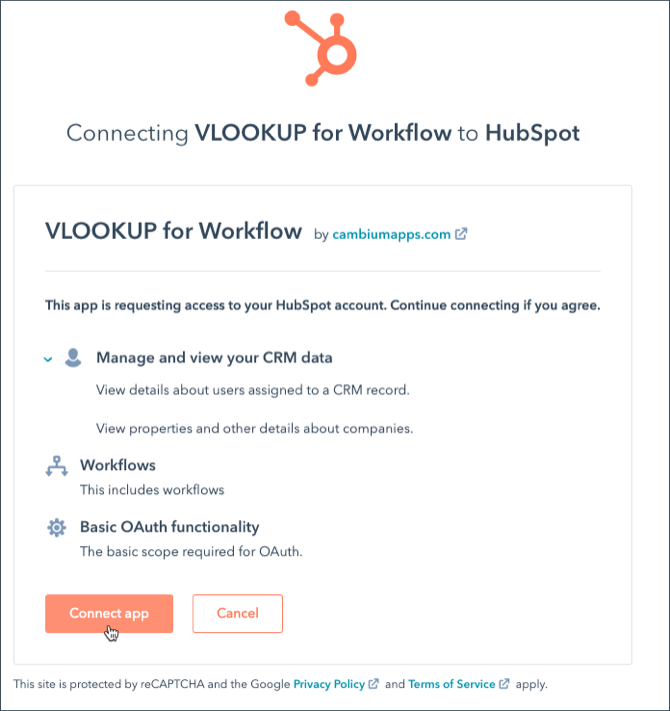
Approve the connection.
-
Open the VLOOKUP settings. HubSpot lands you on the settings page for the VLOOKUP for Workflow connected app. Click Manage in the Manage Account Information section.
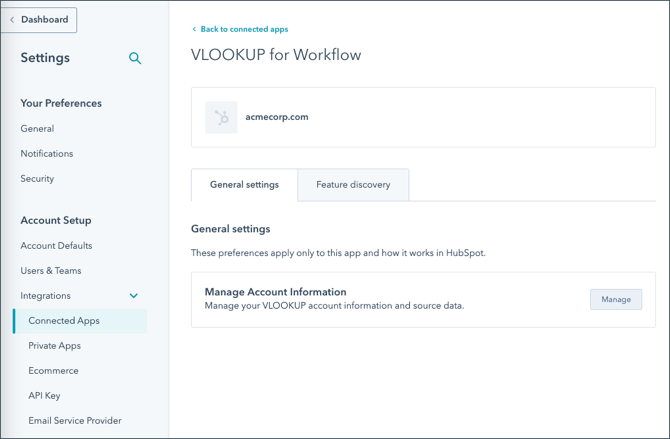
The VLOOKUP settings open in a pop-up window. Create your first source there — CSV or Google Sheets — and you’re ready to use the workflow action.
Install from the workflow editor
Section titled “Install from the workflow editor”If VLOOKUP isn’t installed yet, you can connect it while you build a workflow.
-
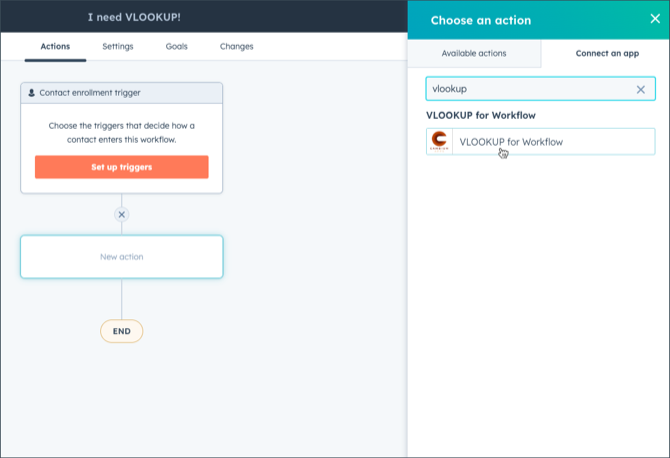
Add an action to your workflow and choose Connect an app. Find VLOOKUP for Workflow in the list and click it.
-
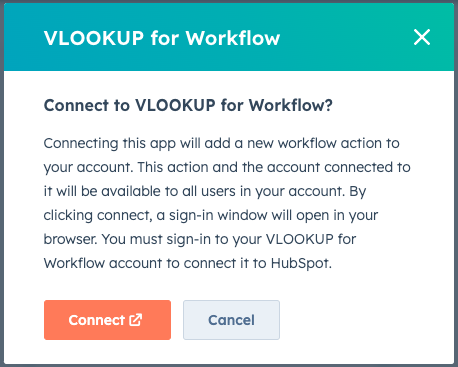
Click Connect. HubSpot explains what to expect, then takes you to the Marketplace.
-
Follow the Marketplace install in the steps above, and create a source before you go back.
-
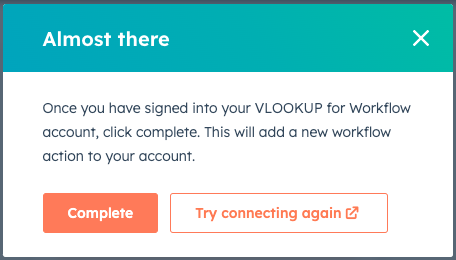
Return to your workflow and click Complete.
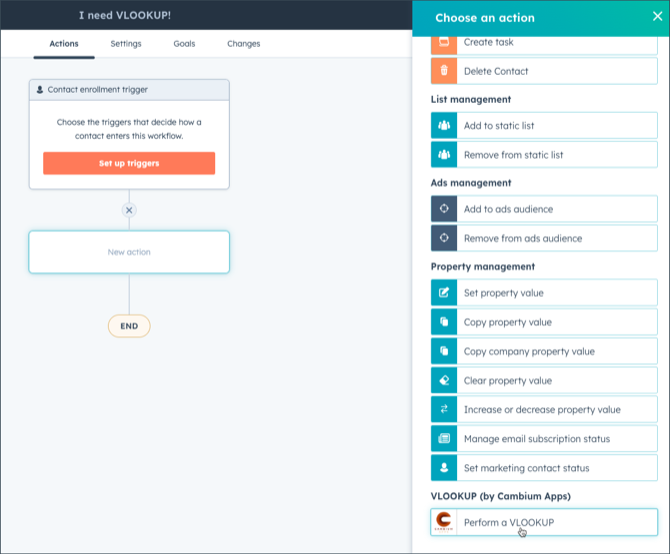
Perform a VLOOKUP now appears in the list of workflow actions. If you don’t see it, refresh your browser.
What happens next
Section titled “What happens next”Your 14-day trial includes a set number of lookups — see VLOOKUP pricing and usage limits. Subscribe from the VLOOKUP settings whenever you’re ready; see Subscribing to VLOOKUP.
Related articles
Section titled “Related articles”Ask the help center
Answers come from these guides, with links to the articles used.
Ask anything about Transactional Email or VLOOKUP for Workflow.