

Creating a Google Sheets source in VLOOKUP
Point VLOOKUP at a tab in a Google Sheet so your workflows always look up the latest data.
Overview
Section titled “Overview”A Google Sheets source reads straight from one tab of a Google Sheet. Edit the sheet whenever you like — VLOOKUP looks up the current data, so there’s nothing to re-upload. For most teams it’s the most convenient kind of source.
VLOOKUP always matches against the first column of the tab. Put the values that come from your HubSpot records in column 1. When a row matches, the workflow can return any column from that row.
Before you begin
Section titled “Before you begin”- The first time you create a Google Sheets source, VLOOKUP asks you to sign in with Google. See Connecting VLOOKUP to Google Drive.
-
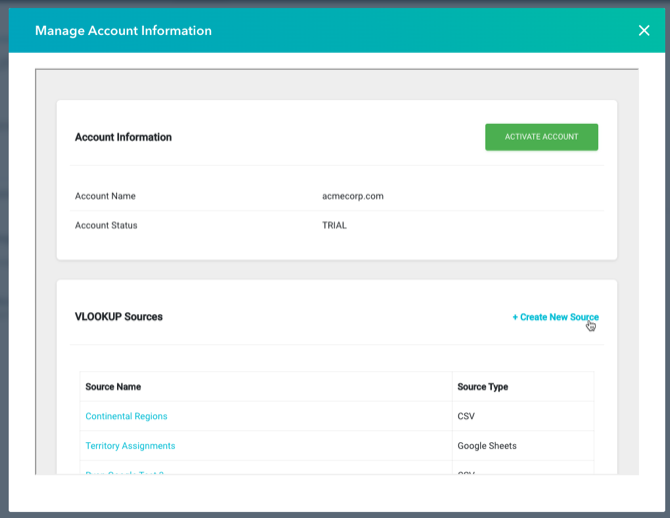
Open the VLOOKUP settings and click Create New Source. See Finding the VLOOKUP settings page.
-
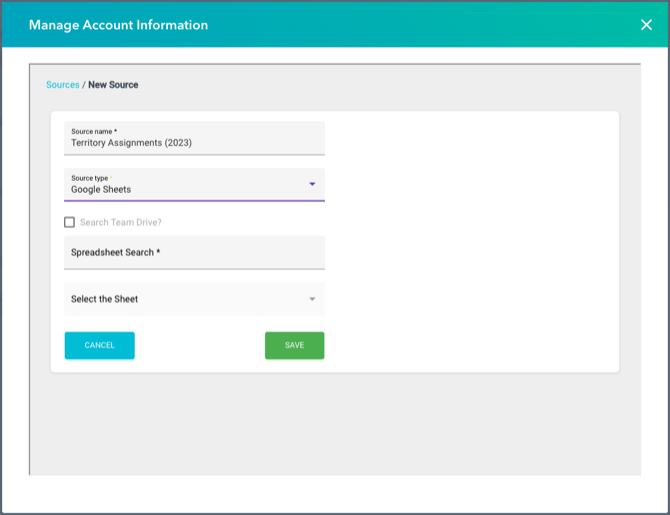
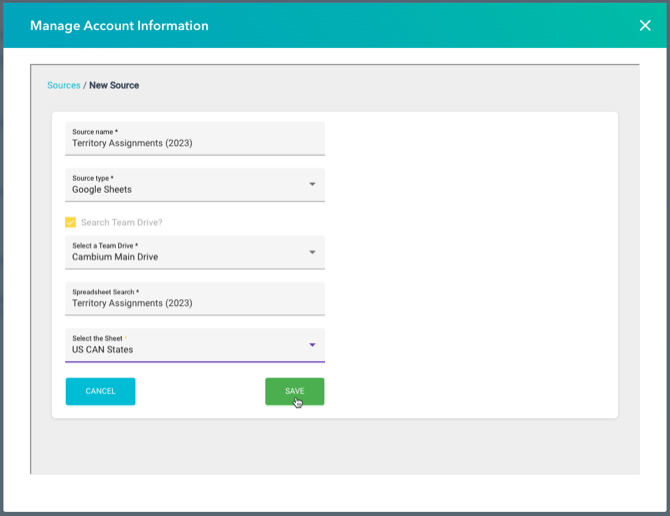
Name the source and choose Google Sheets as the Source type.
-
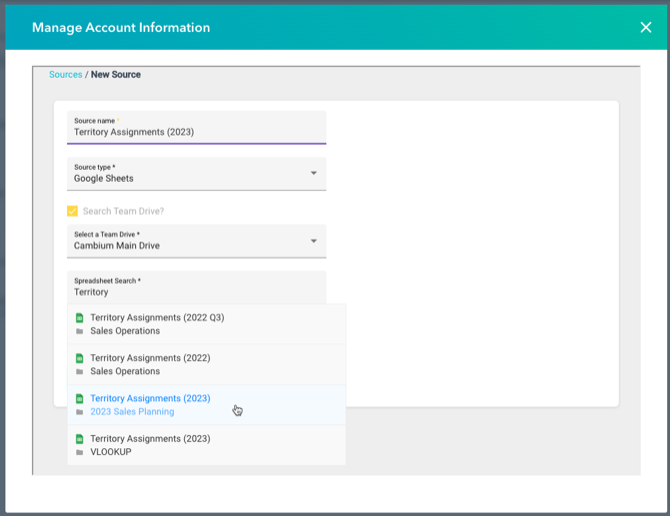
Find the spreadsheet. VLOOKUP searches the My Drive of the Google user you connected. To search a shared drive instead, tick Search Shared Drive and pick the drive. Type in Spreadsheet Search and press Enter.
-
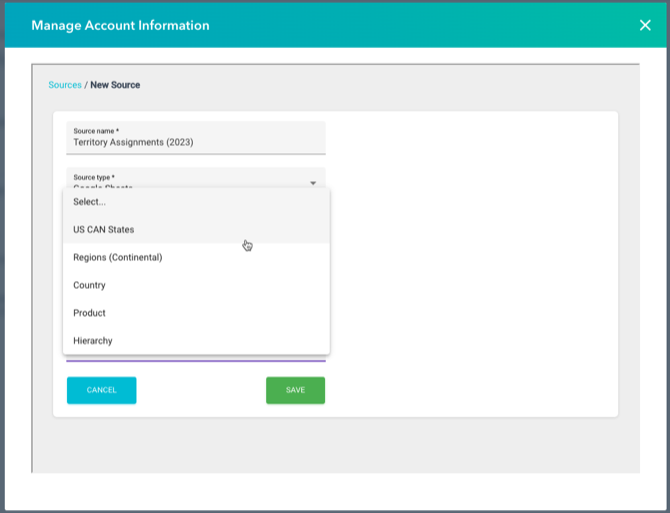
Pick the spreadsheet, then the tab. A spreadsheet can have many tabs; VLOOKUP needs to know which one to look in.
-
Click Save.
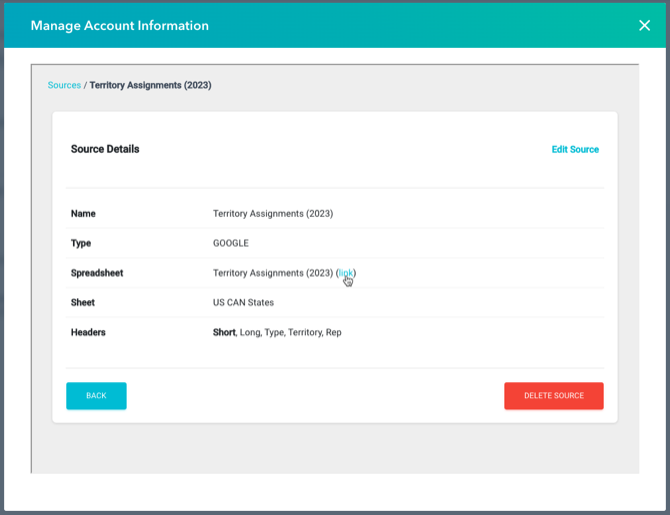
Your source is ready to use in workflows. Click it in the sources list to see its details, including a link to the sheet in Google Drive.
- Don’t reorder or repurpose columns in a sheet that workflows already use. Each Perform a VLOOKUP action returns a column by position, so moving columns can make it return the wrong value. If you do change the columns, check every workflow that uses the source and reselect the column to return.
Related articles
Section titled “Related articles”Ask the help center
Answers come from these guides, with links to the articles used.
Ask anything about Transactional Email or VLOOKUP for Workflow.