

Editing a CSV source in VLOOKUP
Replace the data in a CSV source so future workflow lookups use your changes.
Overview
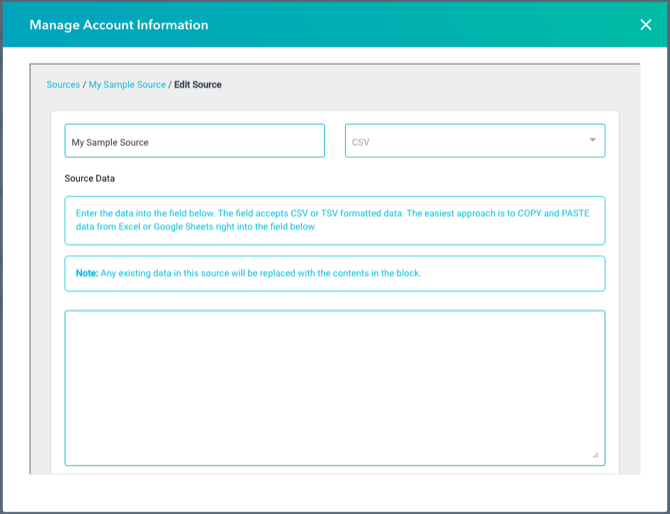
Section titled “Overview”Editing a CSV source replaces all of its data with the table you paste in. The edit page doesn’t load your current data, so start from a complete, updated copy of the table.
As when you created it, VLOOKUP matches against the first column, so keep your lookup values there.
-
Open the VLOOKUP settings and click the source you want to change. See Finding the VLOOKUP settings page.
-
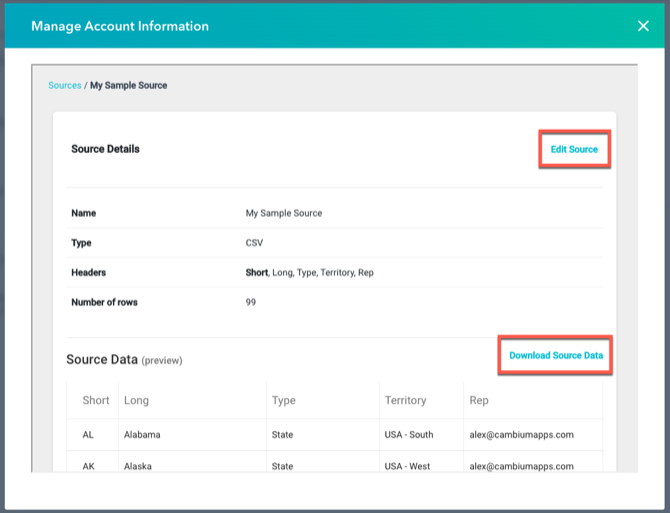
Get the current data, if you need it. Click Download Source Data to save the source as a CSV file, then open it in a spreadsheet and make your changes.
-
Click Edit Source. The edit page opens with an empty data box.
-
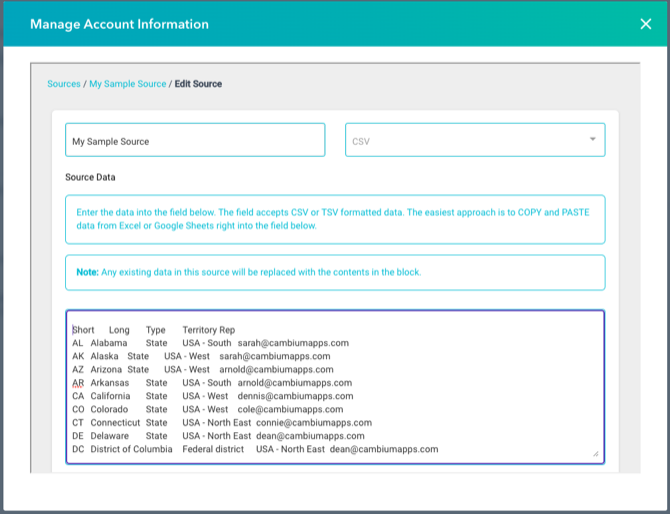
Paste the full, updated table — headers in row 1 — into the box.
-
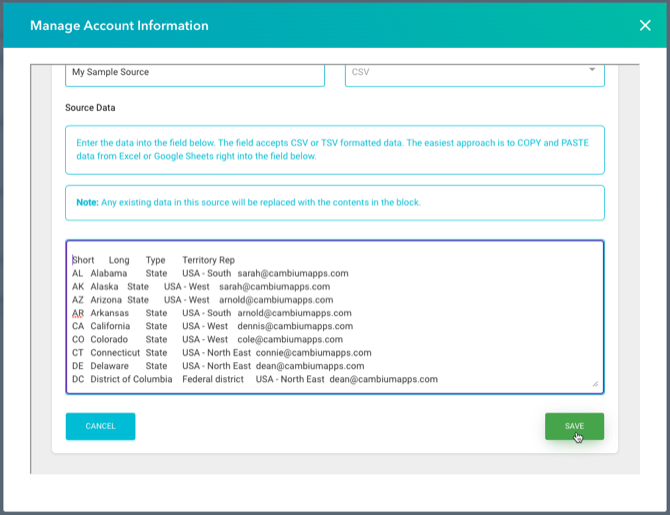
Click Save.
The new data replaces the old. Workflow lookups from now on use it; in this example, contacts are assigned to the updated territory reps.
Related articles
Section titled “Related articles”Ask the help center
Answers come from these guides, with links to the articles used.
Ask anything about Transactional Email or VLOOKUP for Workflow.