

Troubleshooting the VLOOKUP workflow action
Read a record's VLOOKUP result in the workflow history and work out why it isn't what you expected.
Overview
Section titled “Overview”HubSpot records every step a workflow runs, so you can see exactly what VLOOKUP returned for any record. Start from the workflow’s details page: the Enrollment history tab shows results record by record, and the Action logs tab shows the details of any step.
Find a record’s VLOOKUP result
Section titled “Find a record’s VLOOKUP result”-
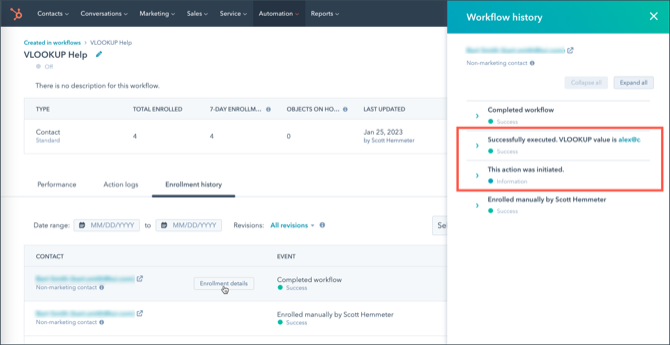
Open the workflow’s Enrollment history and find the record.
-
Click Enrollment details. A sidebar lists every step, most recent at the top. Each VLOOKUP shows as two steps.
-
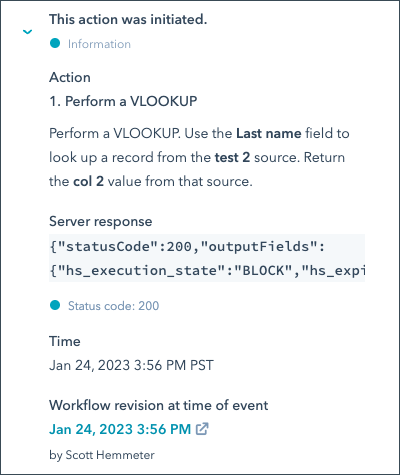
Expand the first step, “This action was initiated.” VLOOKUP always answers this step by telling HubSpot to hold the workflow (BLOCK) until the lookup finishes, which takes less than a minute.
-
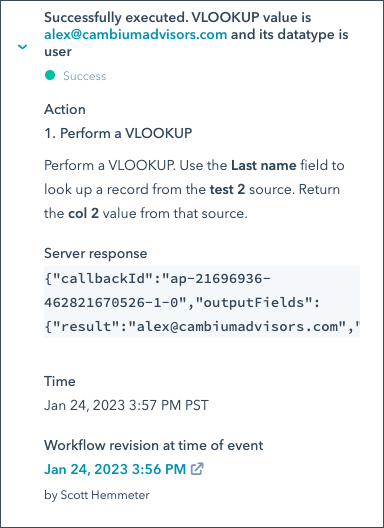
Expand the second step. You want to see Successfully executed. If the record’s value has no matching row in your source, the step says so.
Read the response
Section titled “Read the response”The second step shows VLOOKUP’s response. It’s meant for machines, so the field names look cryptic, but each one maps to an output value:
{ "callbackId": "ap-12345678-362821970526-1-0", "outputFields": { "result": "alex@cambiumadvisors.com", "result_bm_Boolean": "", "result_zh_Type": "user", "result_am_Number": "", "isFound": "true", "hs_execution_state": "SUCCESS", "result_dm_User": "987654321", "resultCode": "success", "result_cm_Date": "", "result_zm_lookupValue": "AL" }}To check the result:
- Open your source — the Google Sheet, or for a CSV source, click Download Source Data in the VLOOKUP settings.
- Compare
result_zm_lookupValuewith the record. It’s the value HubSpot sent, and should match the property you chose in the action. - Compare
resultwith your source. It’s the text value VLOOKUP found. If it matches the source, VLOOKUP is working. - Check the typed field you’re using. If you expected a value in a typed
field such as
result_dm_User(VLOOKUP Result (User)) and it’s empty, check the rules in VLOOKUP workflow output values — for example, a user result needs the email address of a user in your HubSpot account.
Writing a date to HubSpot isn’t working
Section titled “Writing a date to HubSpot isn’t working”HubSpot accepts a date only in YYYY-MM-DD format. Reformat the dates in your
Google Sheet or CSV — 2022-12-19, not 12/19/2022. See Writing dates to
HubSpot.
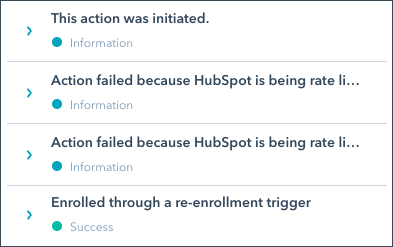
“Action failed because HubSpot is being rate limited”
Section titled ““Action failed because HubSpot is being rate limited””You may see this when you run a very large number of VLOOKUPs at the same time. HubSpot protects itself by slowing down how fast it sends actions across all records. Nothing is wrong: HubSpot runs the VLOOKUP when it has capacity.
Still stuck?
Section titled “Still stuck?”Email us at support@cambiumapps.com with the workflow name and an example record, and we’re happy to help.
Related articles
Section titled “Related articles”Ask the help center
Answers come from these guides, with links to the articles used.
Ask anything about Transactional Email or VLOOKUP for Workflow.