

Connecting VLOOKUP to Google Drive
Sign in with Google once so VLOOKUP can find and read your spreadsheets.
Overview
Section titled “Overview”VLOOKUP needs access to Google Drive to search for your spreadsheets and read them. The first time you create a Google Sheets source, it asks you to sign in with Google.
-
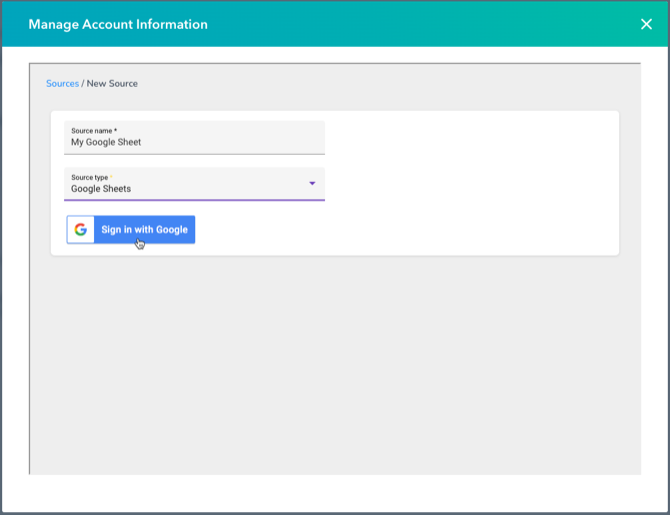
Click Sign In with Google when VLOOKUP prompts you.
-
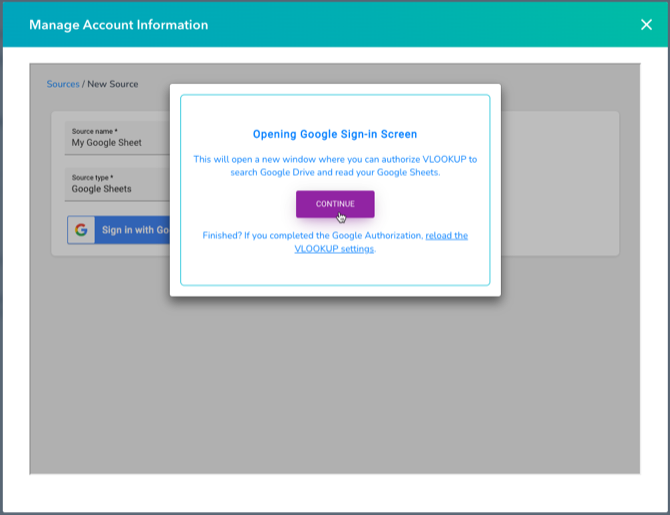
Continue to Google. VLOOKUP lets you know it’s opening a new page to connect.
-
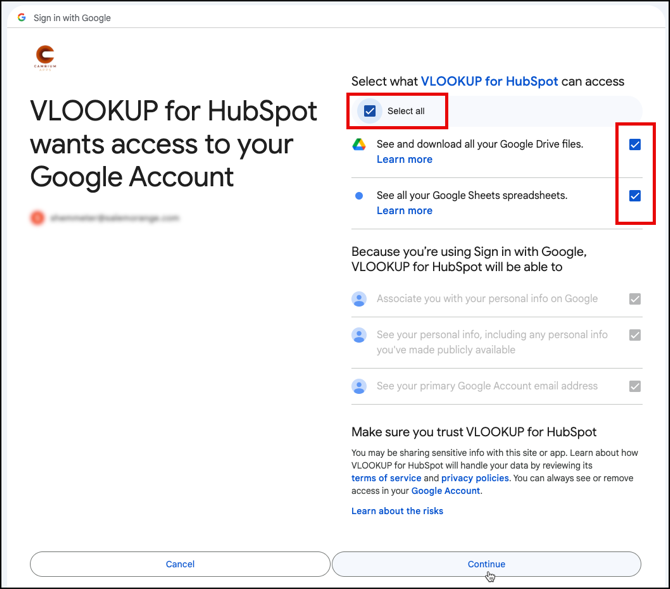
Sign in to Google and select every permission. Google asks you to approve access for VLOOKUP for HubSpot. Tick Select all so every requested permission is granted — if you leave any out, VLOOKUP can’t connect your files.
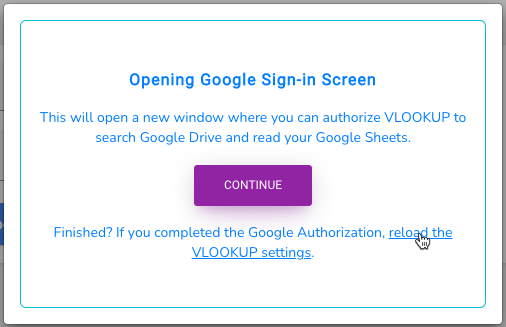
Once you approve, Google sends you back to the VLOOKUP settings to create your source. You can also close that tab, return to HubSpot, reload the VLOOKUP settings, and start creating the source again.
Related articles
Section titled “Related articles”Ask the help center
Answers come from these guides, with links to the articles used.
Ask anything about Transactional Email or VLOOKUP for Workflow.