

VLOOKUP workflow output values
What each output of the Perform a VLOOKUP action contains and which HubSpot properties it can write to.
Overview
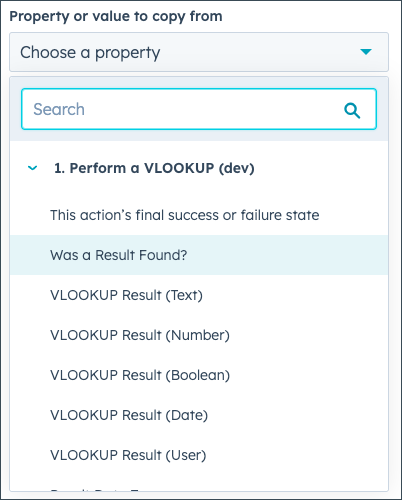
Section titled “Overview”After a Perform a VLOOKUP action, later steps in the workflow can use its outputs. HubSpot only lets you write certain value types to certain kinds of property, so VLOOKUP returns the result in several typed versions — pick the one that matches the property you’re writing to.
The outputs
Section titled “The outputs”| Output | What it contains |
|---|---|
| This action’s final success or failure state | HubSpot’s built-in outcome for every action: success, failed, or skipped. You rarely need it. |
| Was a Result Found? | Yes when VLOOKUP found a matching row and column, No when it didn’t. Branch on this with a Value equals step before you use a result. |
| VLOOKUP Result (Text) | The value from your source, as text. Always filled in when a result was found. |
| VLOOKUP Result (Number) | The result as a number, when the text is numeric. Writes to number and currency properties. |
| VLOOKUP Result (Boolean) | A true/false value, when the text is true or false. Writes to checkbox properties. |
| VLOOKUP Result (Date) | The result as a date, when the text is in YYYY-MM-DD format. Writes to date and date-time properties. |
| VLOOKUP Result (User) | The HubSpot owner ID for the result, when the text is the email address of a HubSpot user. Writes to user properties such as contact owner. |
| Result Data Type | The most precise type of the value found: Text, Number, Boolean, Date, or HubSpot User. |
| Value Being Looked Up | The property value from the enrolled record that VLOOKUP searched for. Useful when you troubleshoot one record’s result. |
Result Data Type values
Section titled “Result Data Type values”Branch on Result Data Type to confirm a value’s type before you write it to HubSpot:
- Text — a result was found and it isn’t any of the types below.
- Number — the result is numeric; VLOOKUP Result (Number) is filled in.
- Boolean — the result is true or false; VLOOKUP Result (Boolean) is filled in.
- Date — the result is a date or date-time; VLOOKUP Result (Date) is filled in.
- HubSpot User — the result is the email address of a user in your HubSpot account; VLOOKUP Result (User) is filled in.
Writing dates to HubSpot
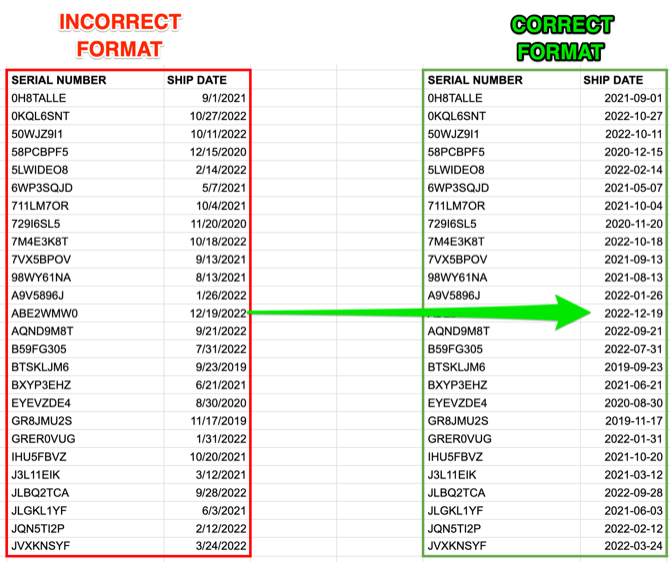
Section titled “Writing dates to HubSpot”HubSpot accepts a date only in YYYY-MM-DD format. Format the date column in
your Google Sheet or CSV that way — 2022-12-19, not 12/19/2022 — or
VLOOKUP Result (Date) stays empty.
Related articles
Section titled “Related articles”Ask the help center
Answers come from these guides, with links to the articles used.
Ask anything about Transactional Email or VLOOKUP for Workflow.